
Get Started
Your qEY-0 is ready to touch the cyber world.
Now let's get you started.
Initial Setup
From unboxing to your first scan in under 5 minutes
Power On
Step 1 of 11
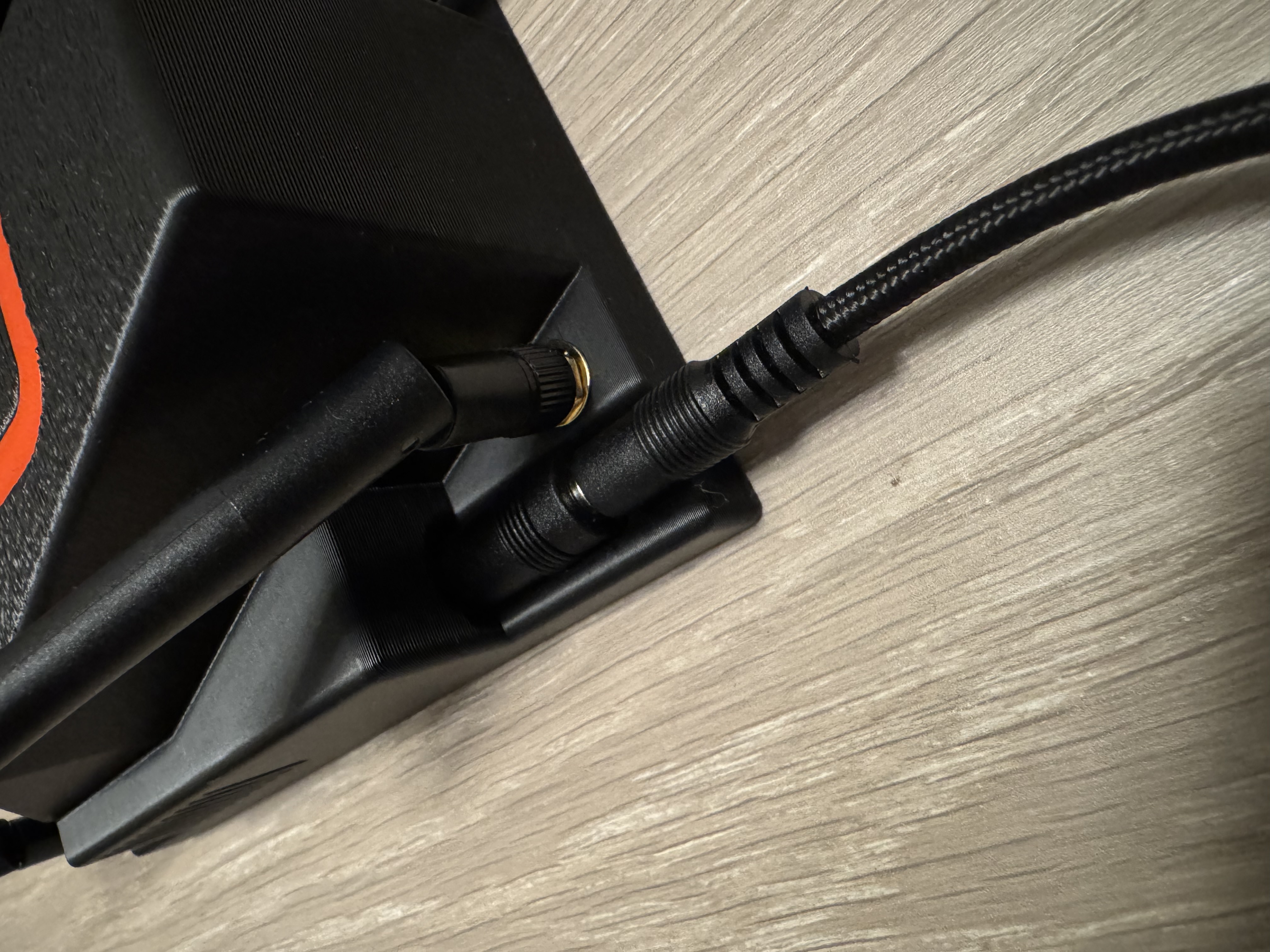
Connect your qEY-0 to power.
The device will boot in approximately 30 seconds.
Connect to Setup AP
Step 2 of 11
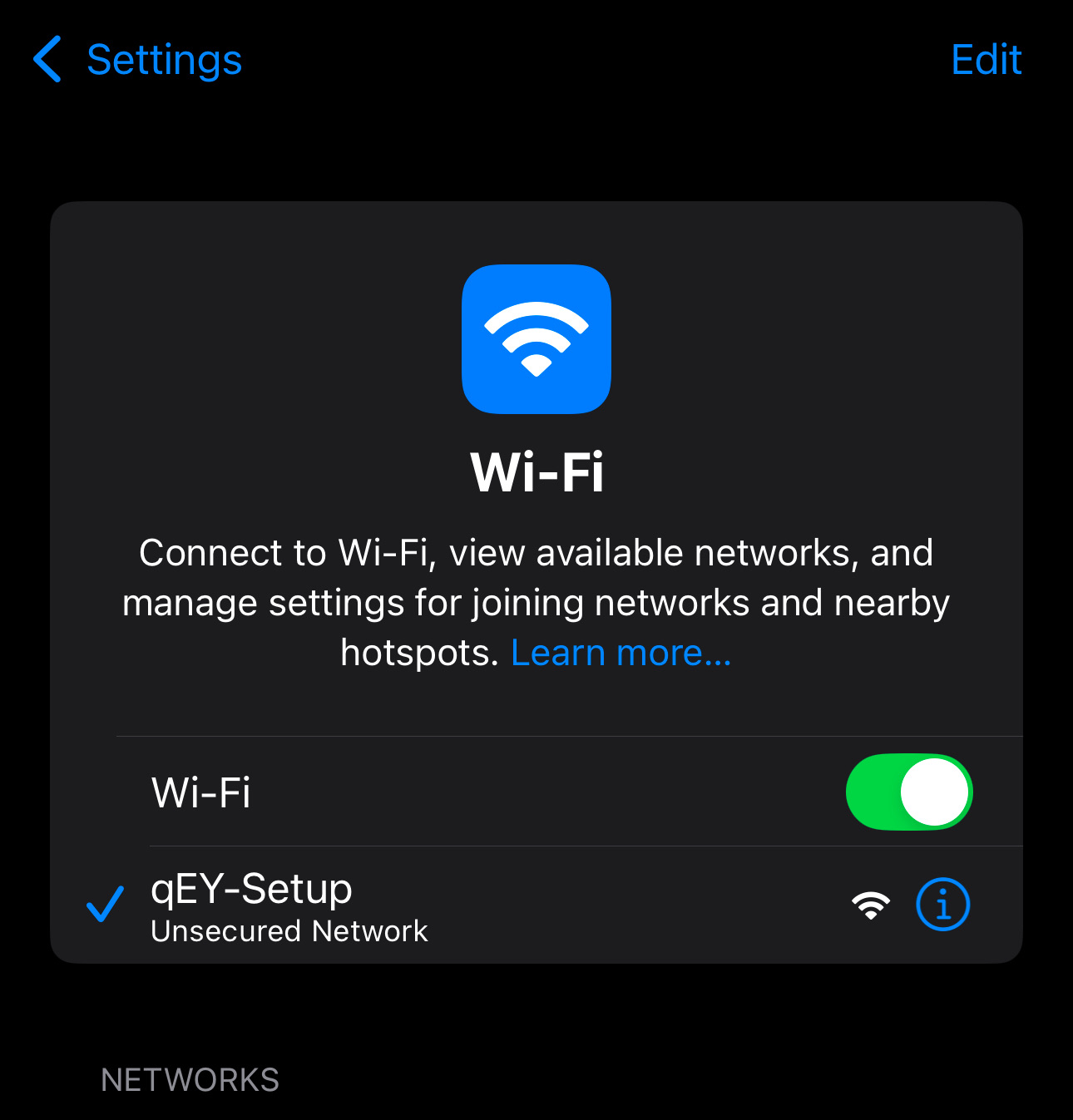
Look for an open WiFi network called 'qEY-Setup' and connect to it.
This is the device's temporary access point for initial configuration.
Open Configuration Portal
Step 3 of 11
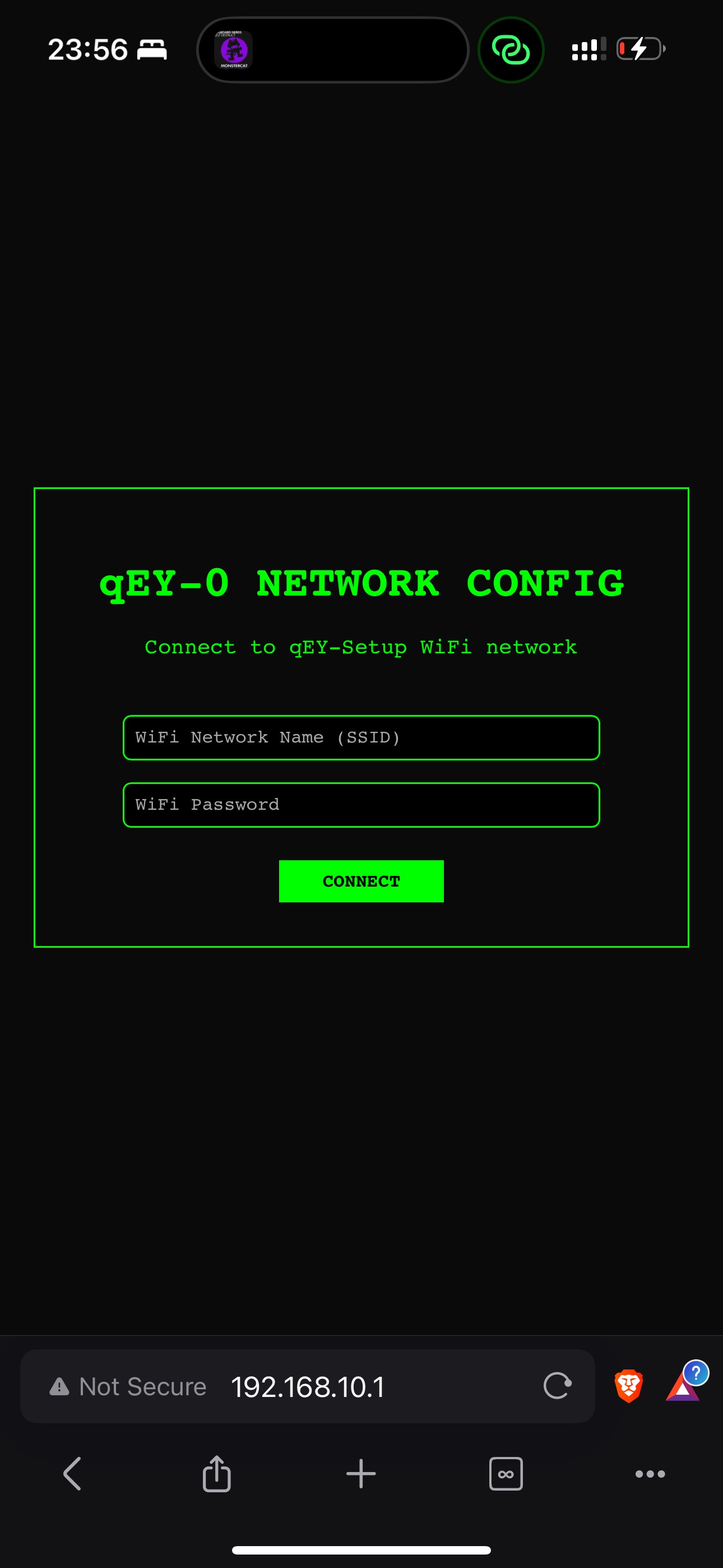
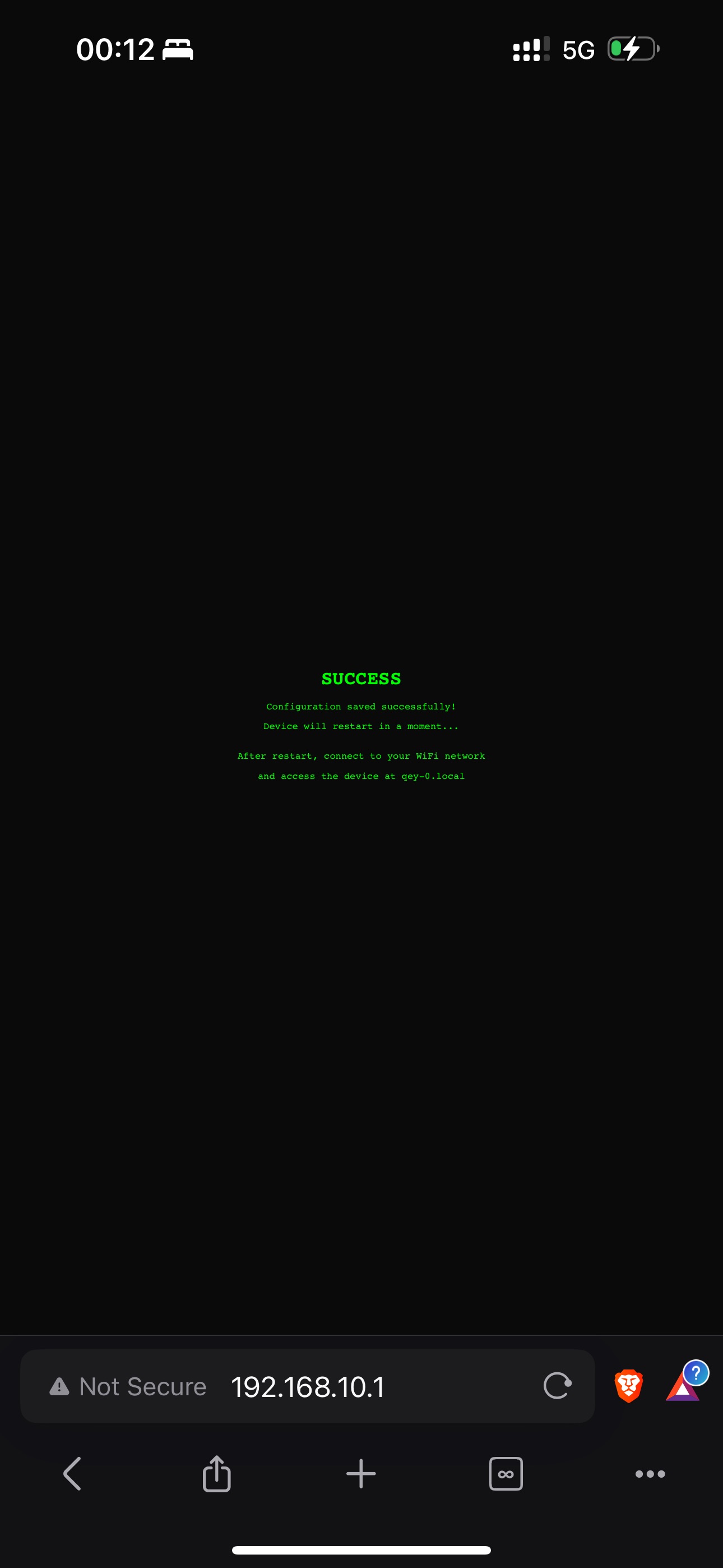
Open your web browser and navigate to 192.168.10.1
You should see the qEY-0 setup interface.
Enter WiFi Credentials
Step 4 of 11
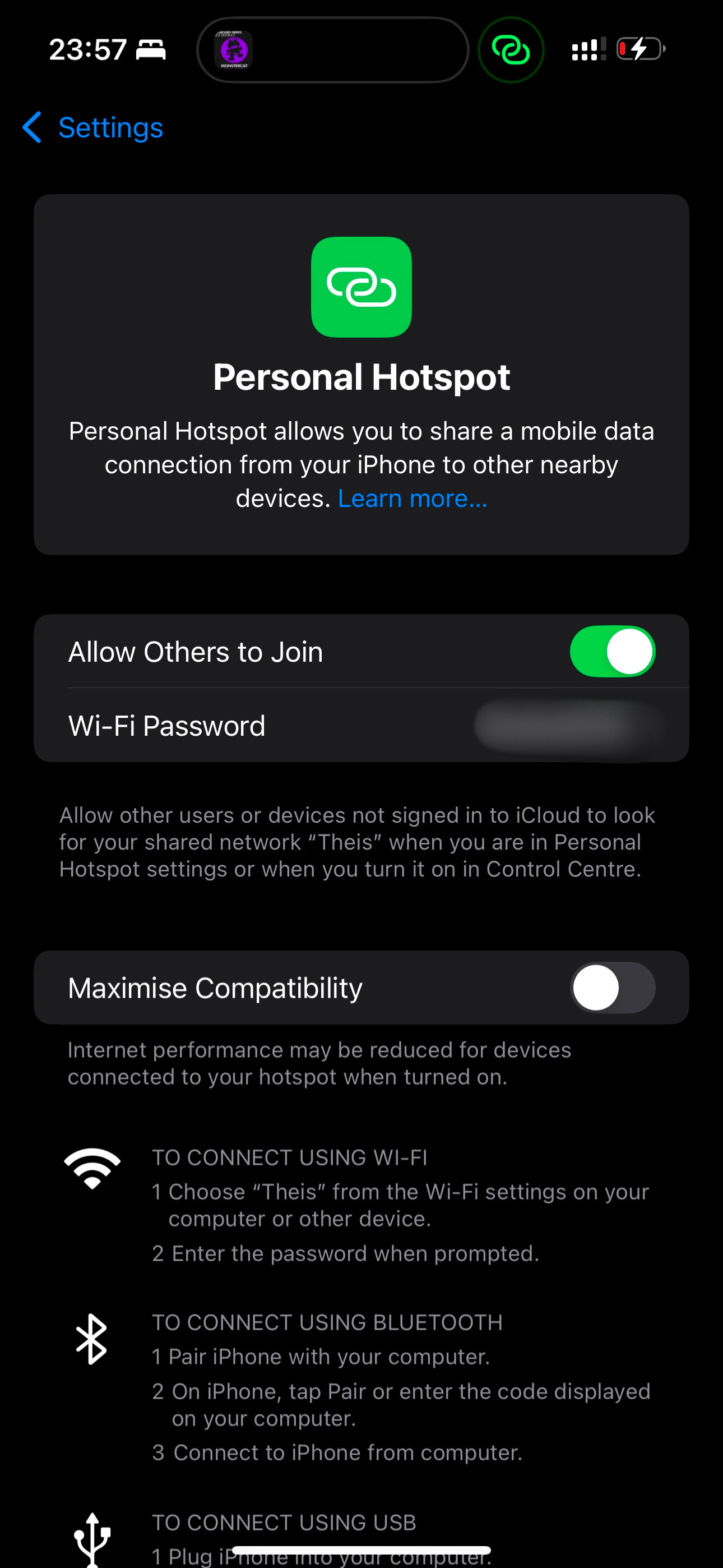
Enter the SSID and password for your phone's hotspot or home WiFi.
This is where qEY-0 will connect to be CONTROLLED remotely.
⚠️ Android Hotspot Users
If using Android hotspot, set it to 5GHz only (not dual-band 2.4/5GHz). Dual-band causes connection issues on some Android devices.
Device Reboot
Step 5 of 11
qEY-0 will automatically reboot and connect to your WiFi.
The 'qEY-Setup' network will disappear. Wait ~45 seconds for the device to connect.
Access Neural Interface
Step 6 of 11
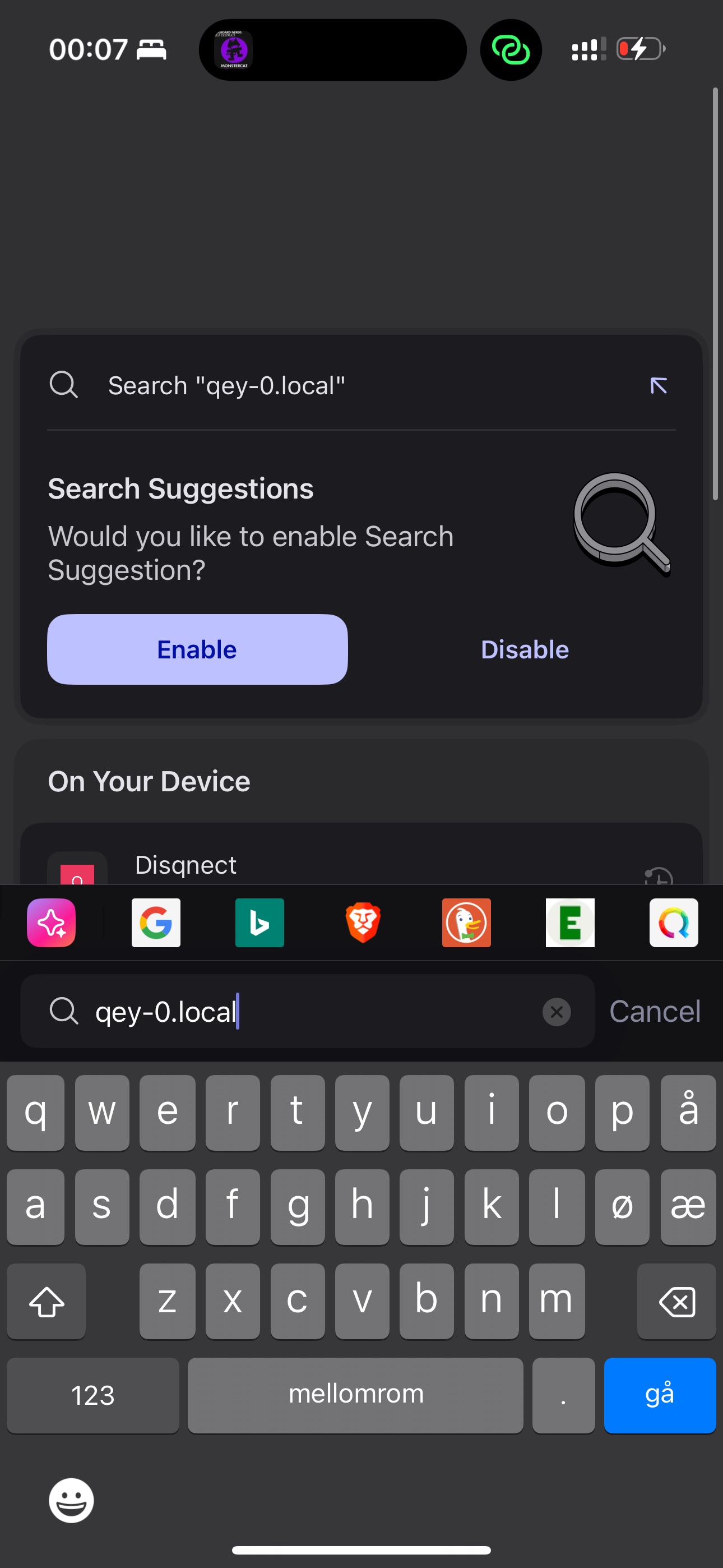
Open your browser and navigate to your qEY-0.
Make sure you're on the same WiFi network as the qEY-0 (preferably connected to your mobile hotspot).
Go to qey-0.local
Find the IP in your Hotspot settings under 'Connected devices', then enter that IP in your browser
Create Your Profile
Step 7 of 11
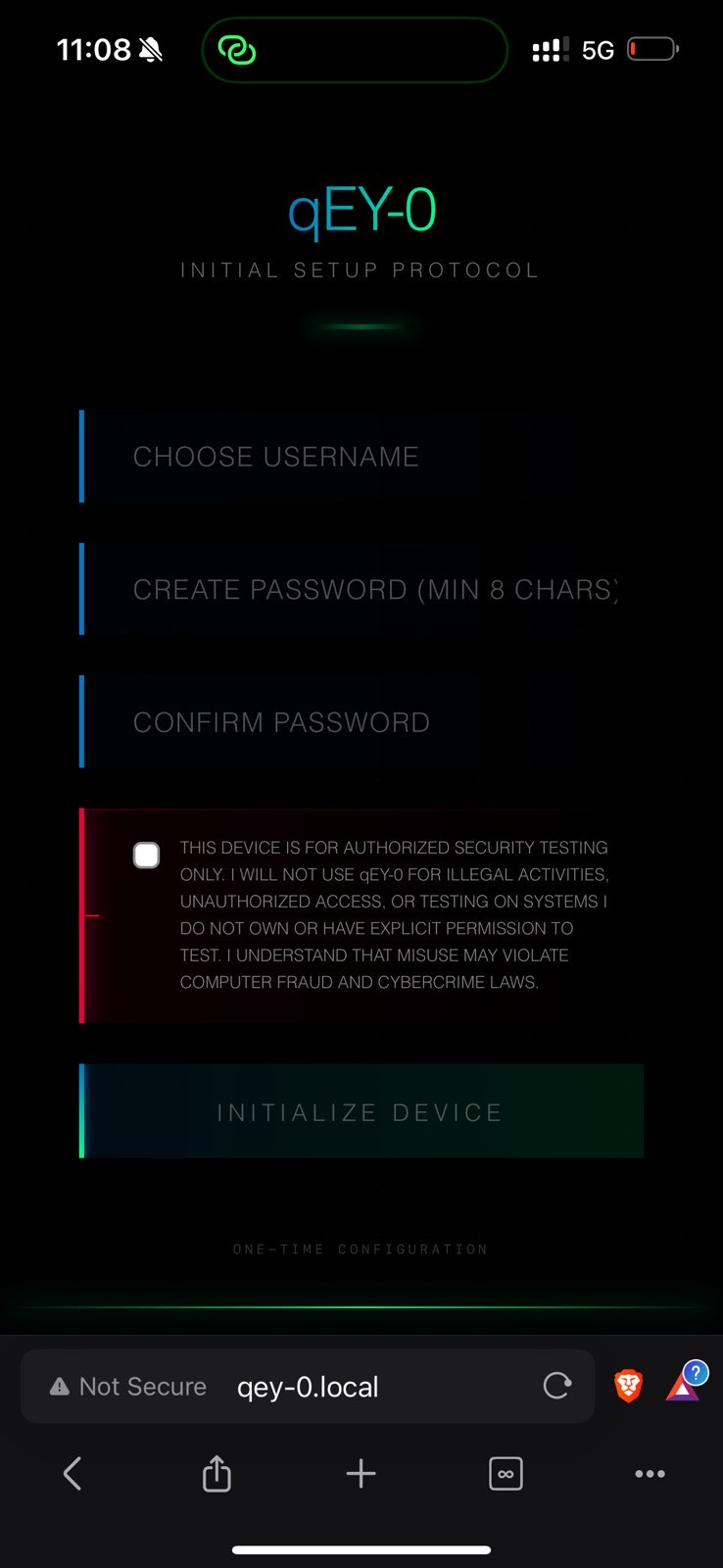
Set up your profile.
This is your identity within the qEY-0 system.
Save Your Recovery Code
Step 8 of 11
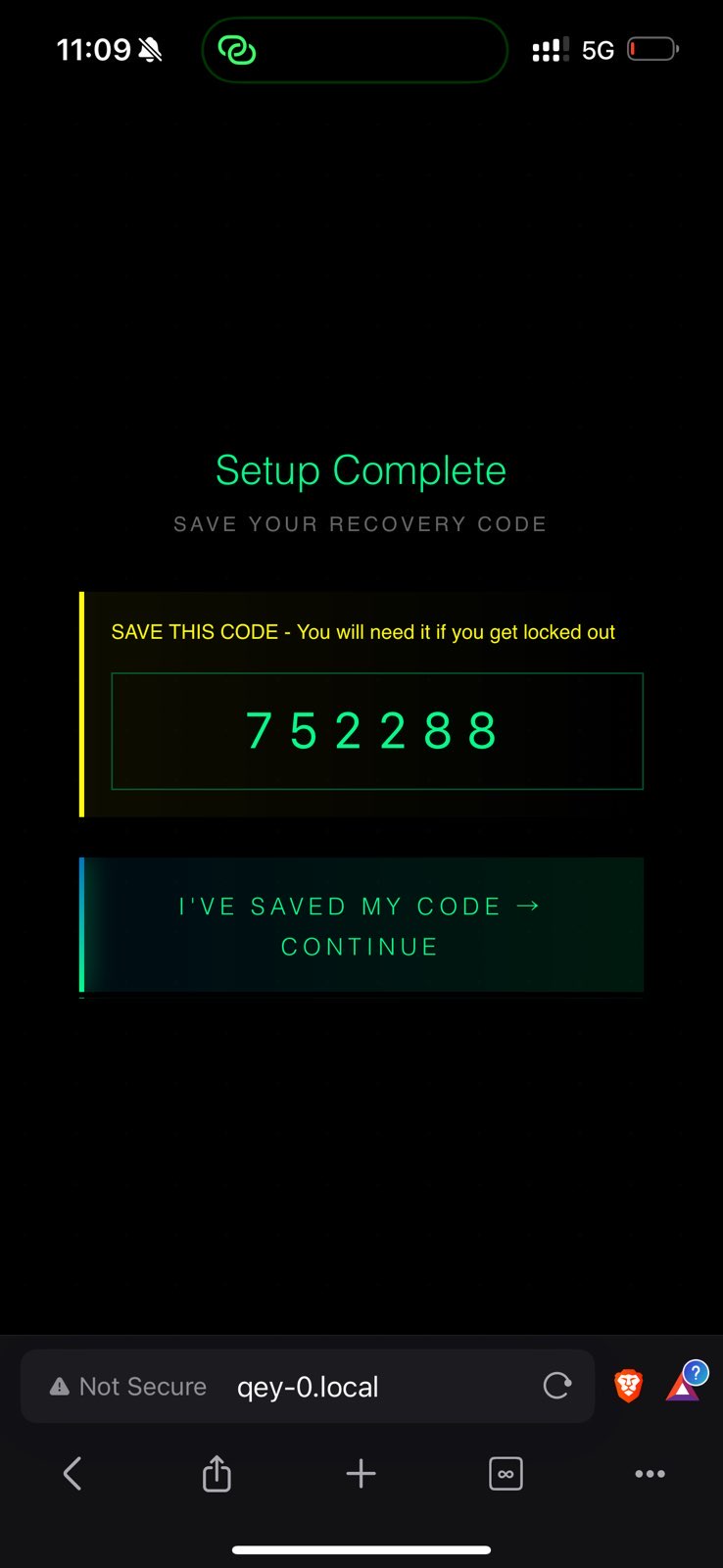
Screenshot or note down the recovery code.
This will be used incase you forget your password.
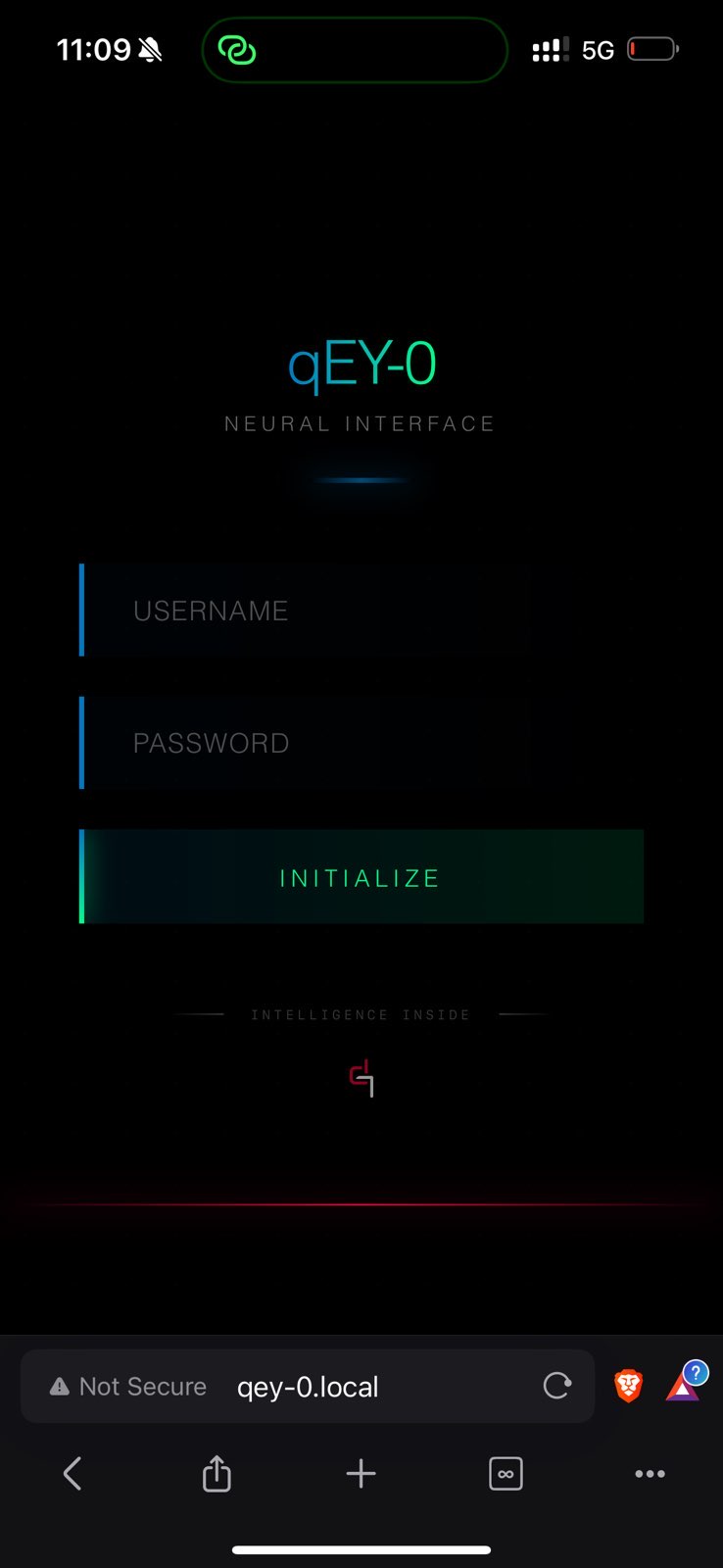
Log in
Step 9 of 11
Enter your credentials to access qEY-0 interface.
You will now enter the main interface.
Select Target Network
Step 10 of 11
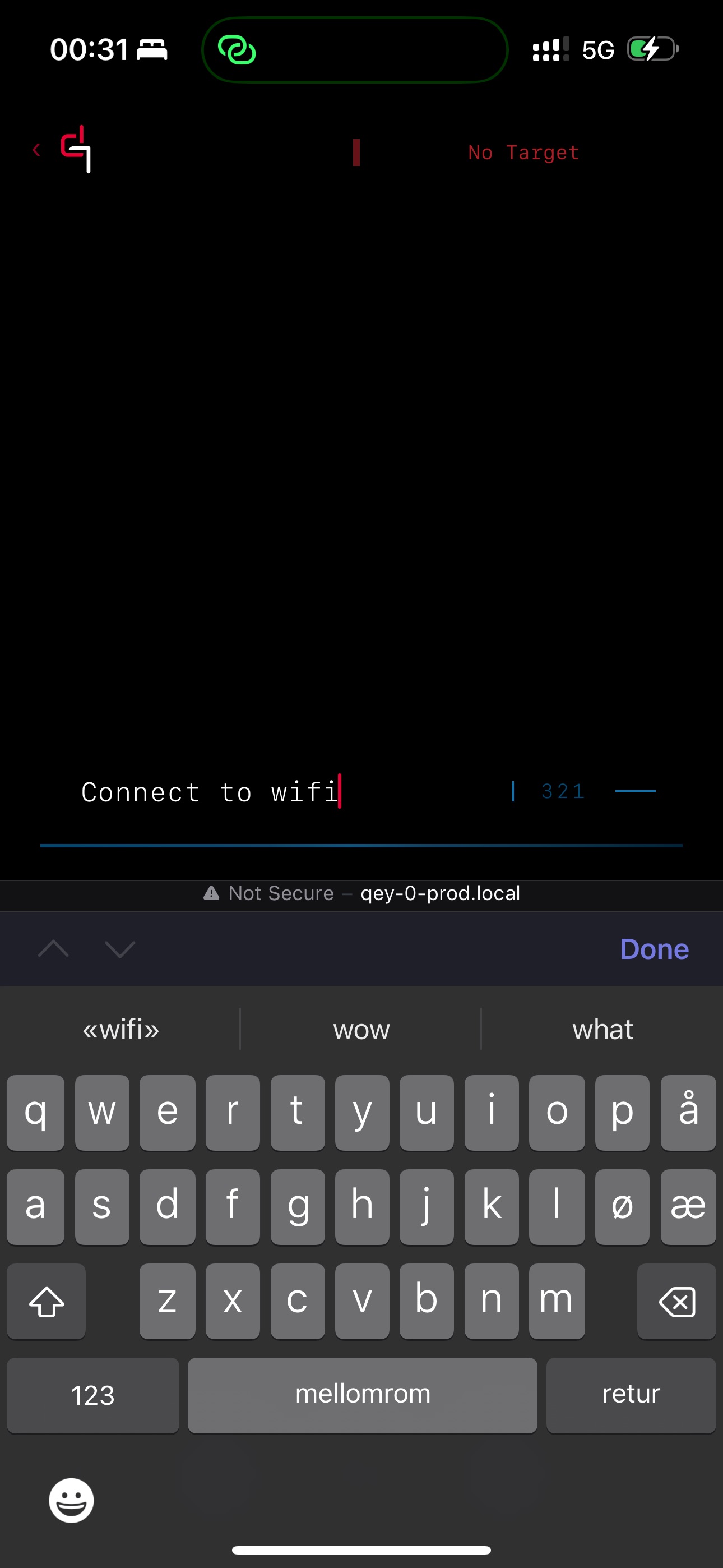
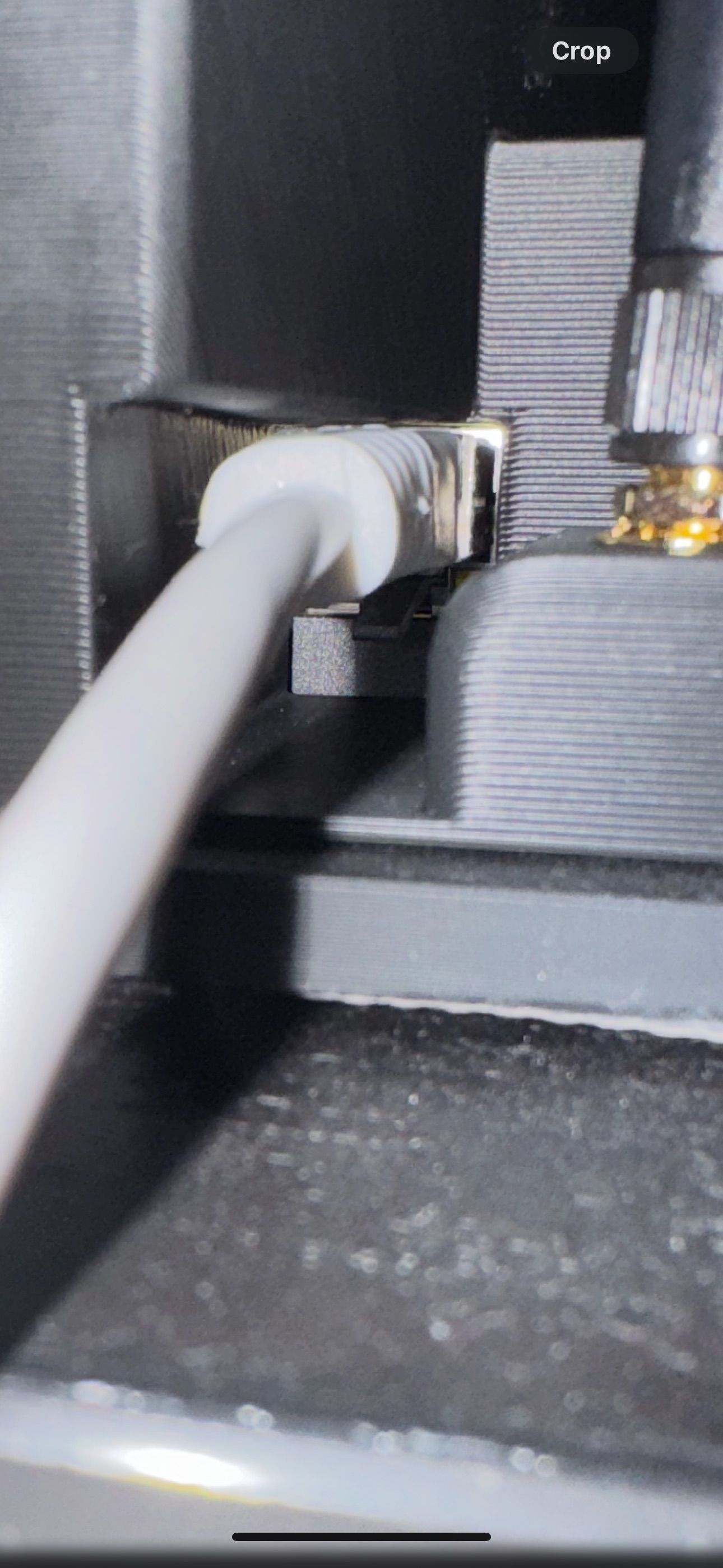
In the interface, type "Connect to wifi" in the interface, OR physically connect an Ethernet cable.
This is the network you'll be testing and exploring.
Initiate Scan
Step 11 of 11
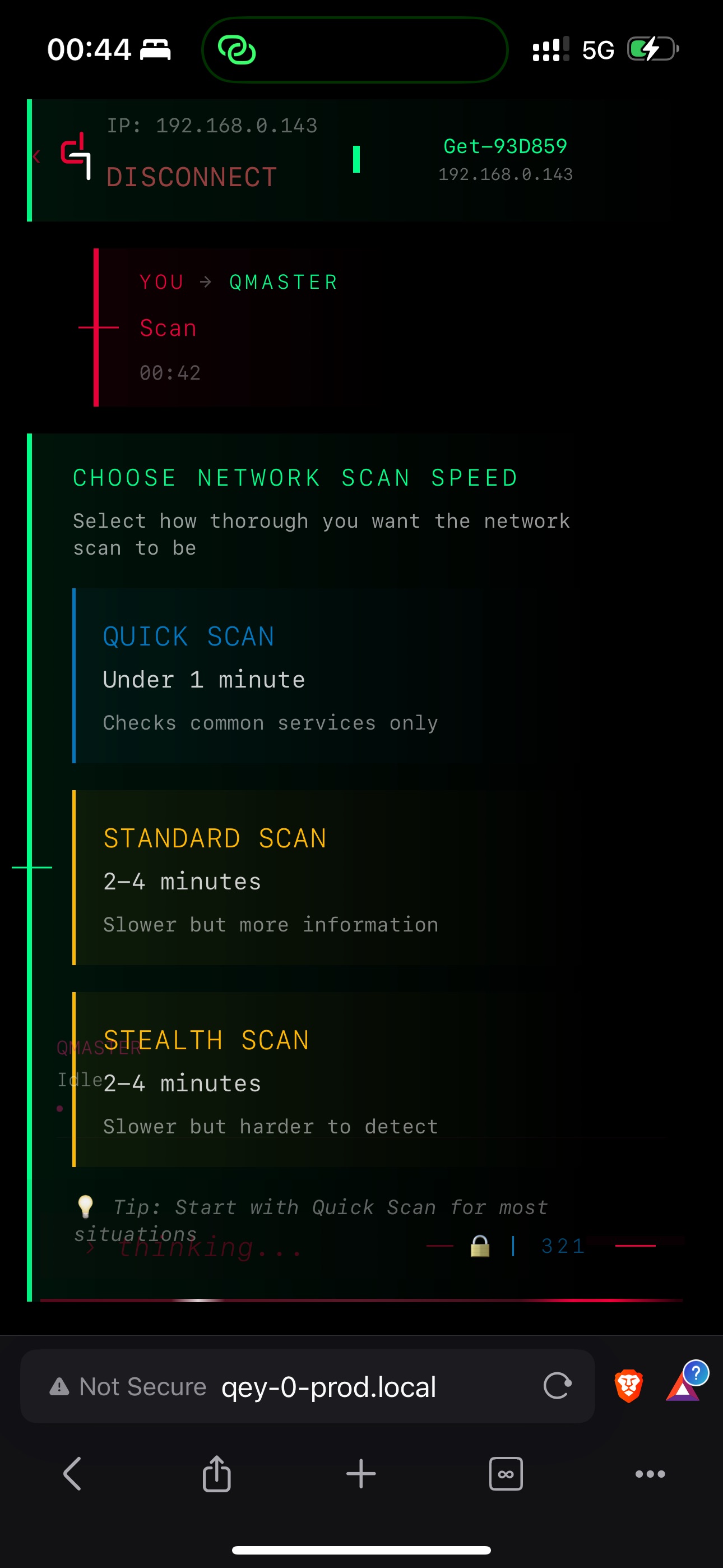
Type "scan" in the interface to start scanning.
The Neural Interface will light up with real-time network data.
You're ready to touch the cyber world.